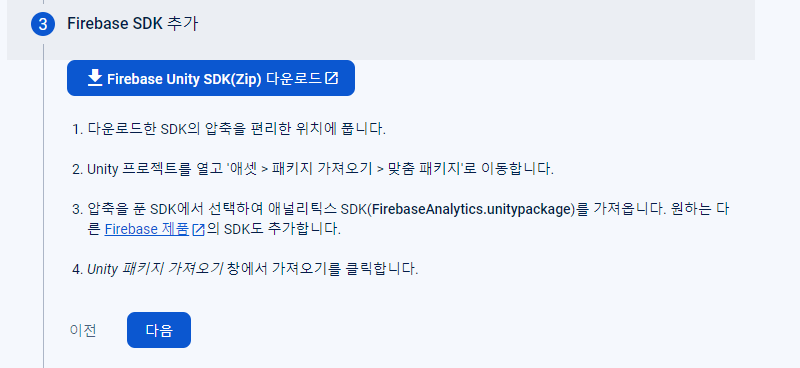
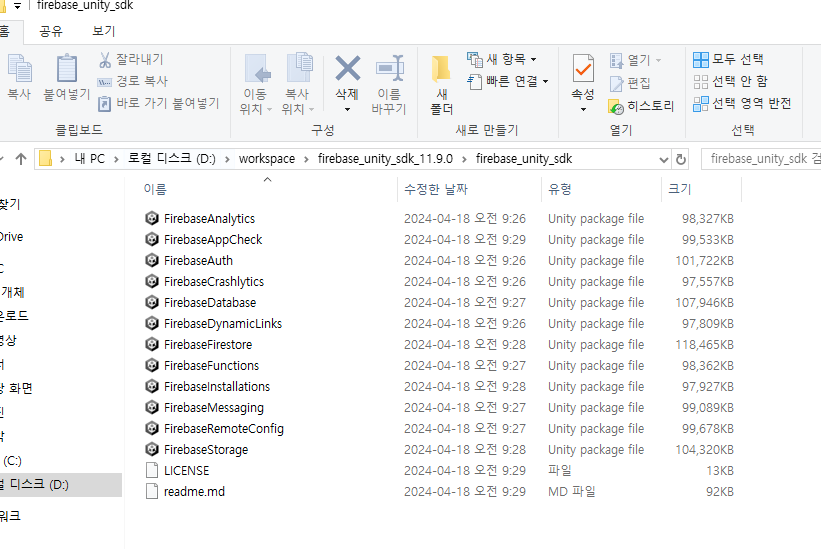
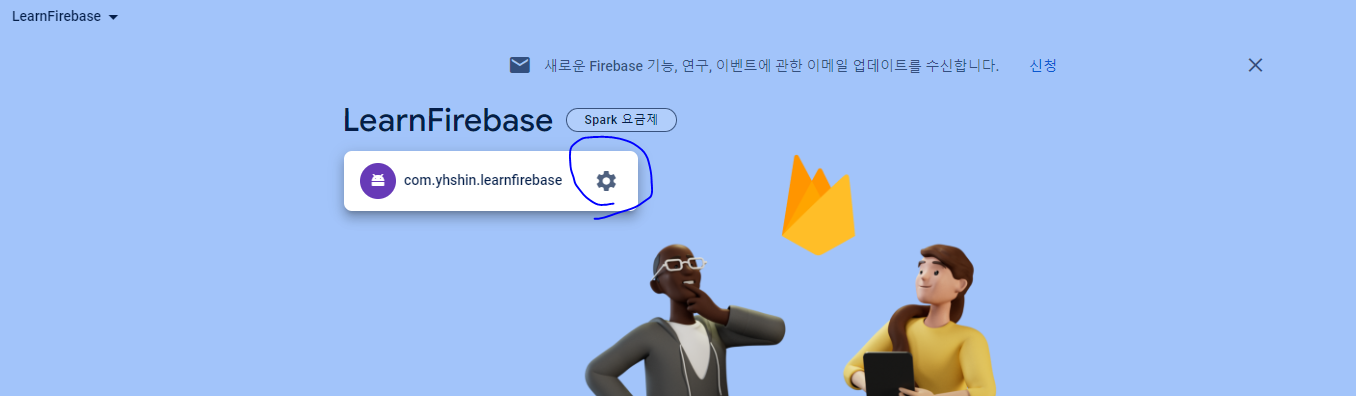
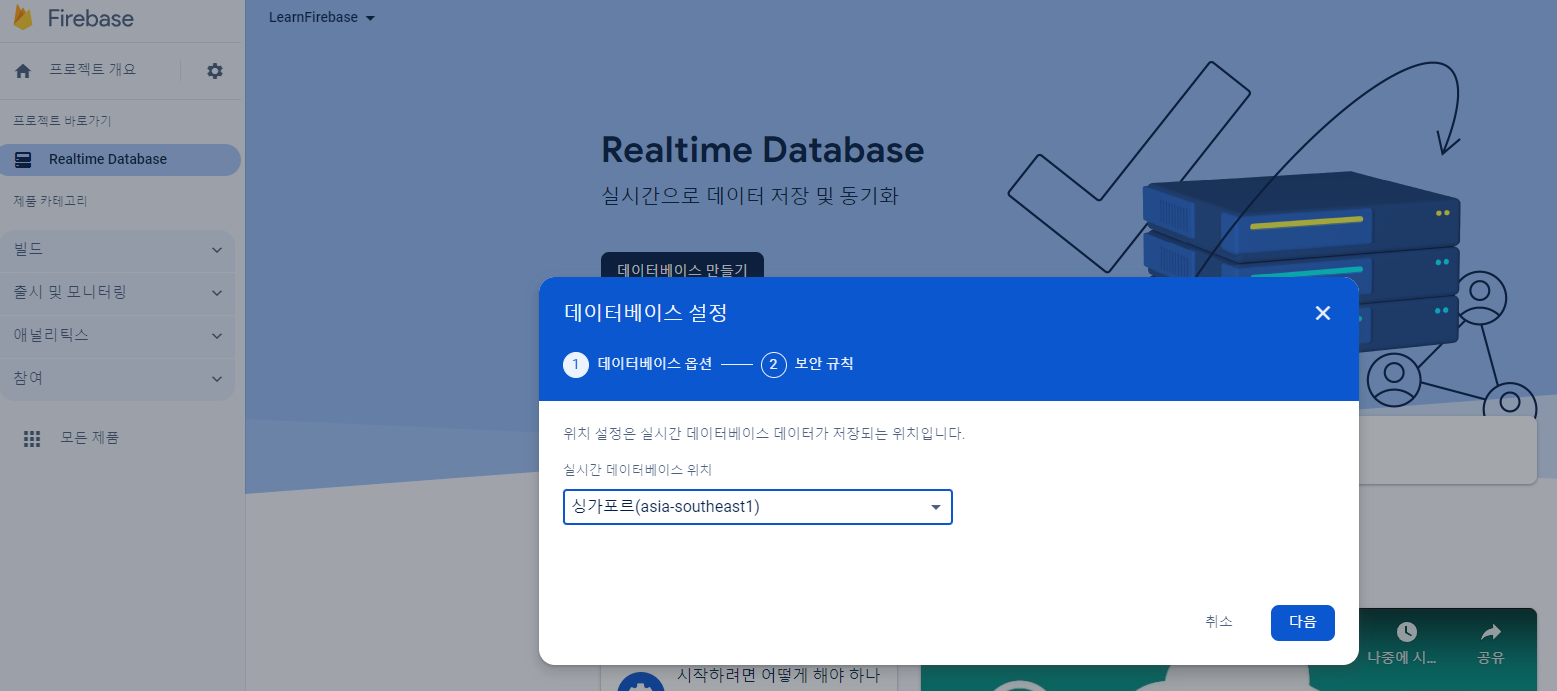
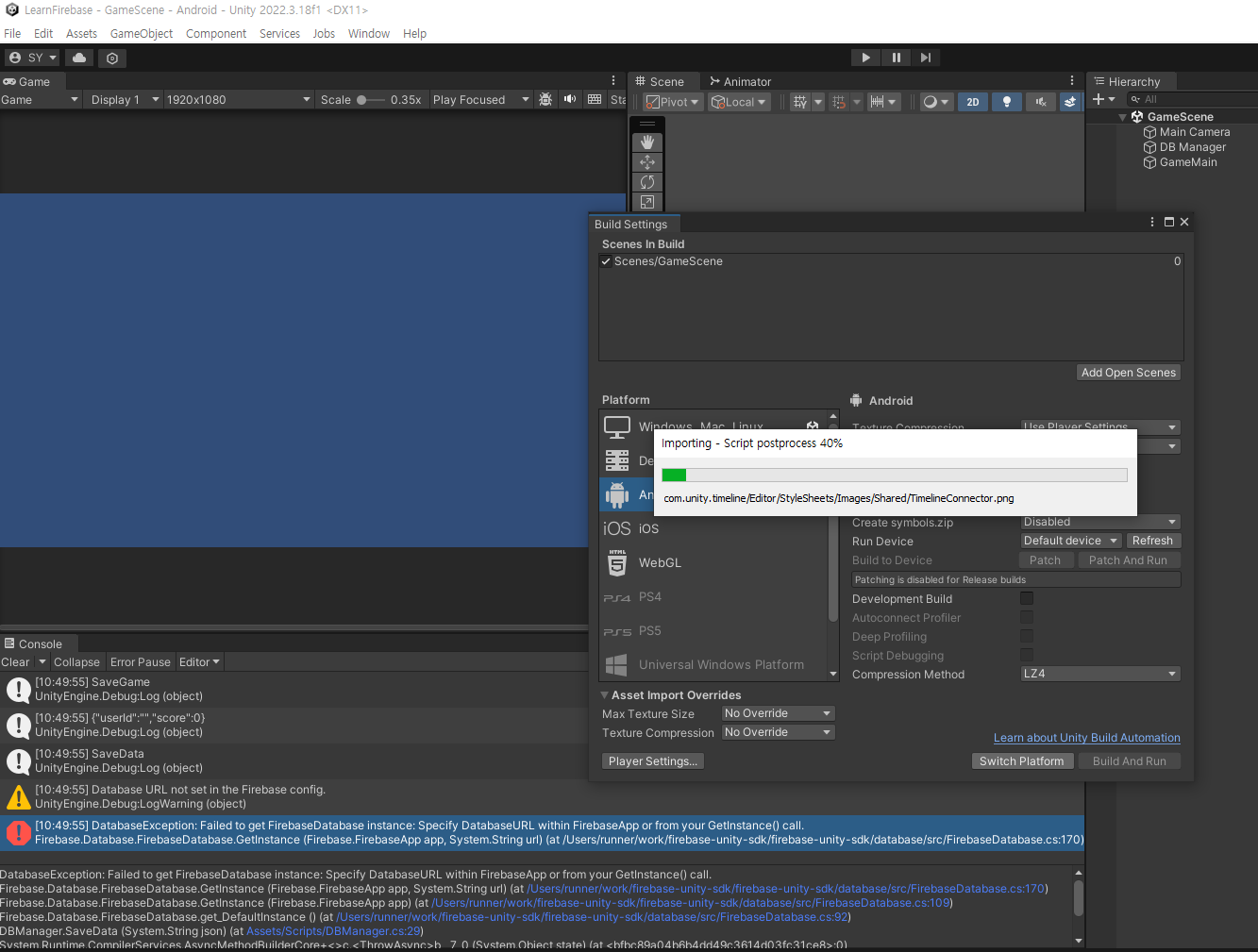
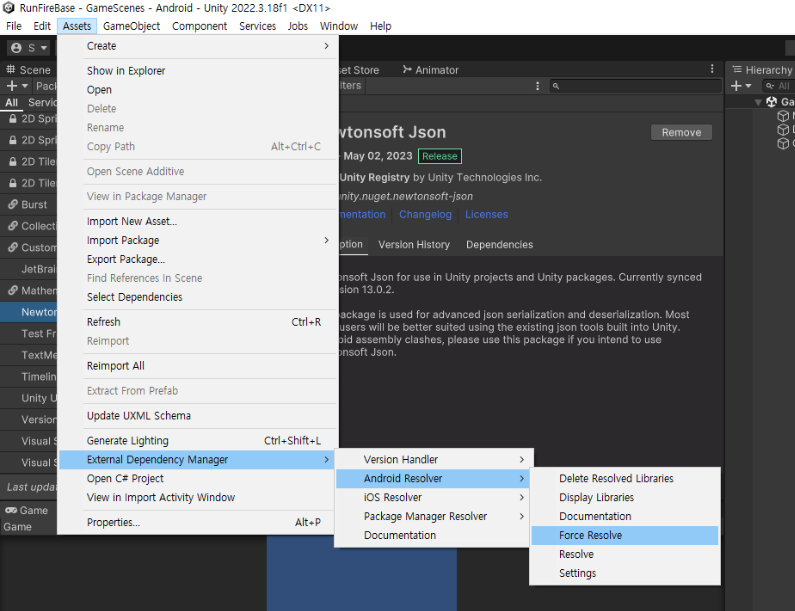
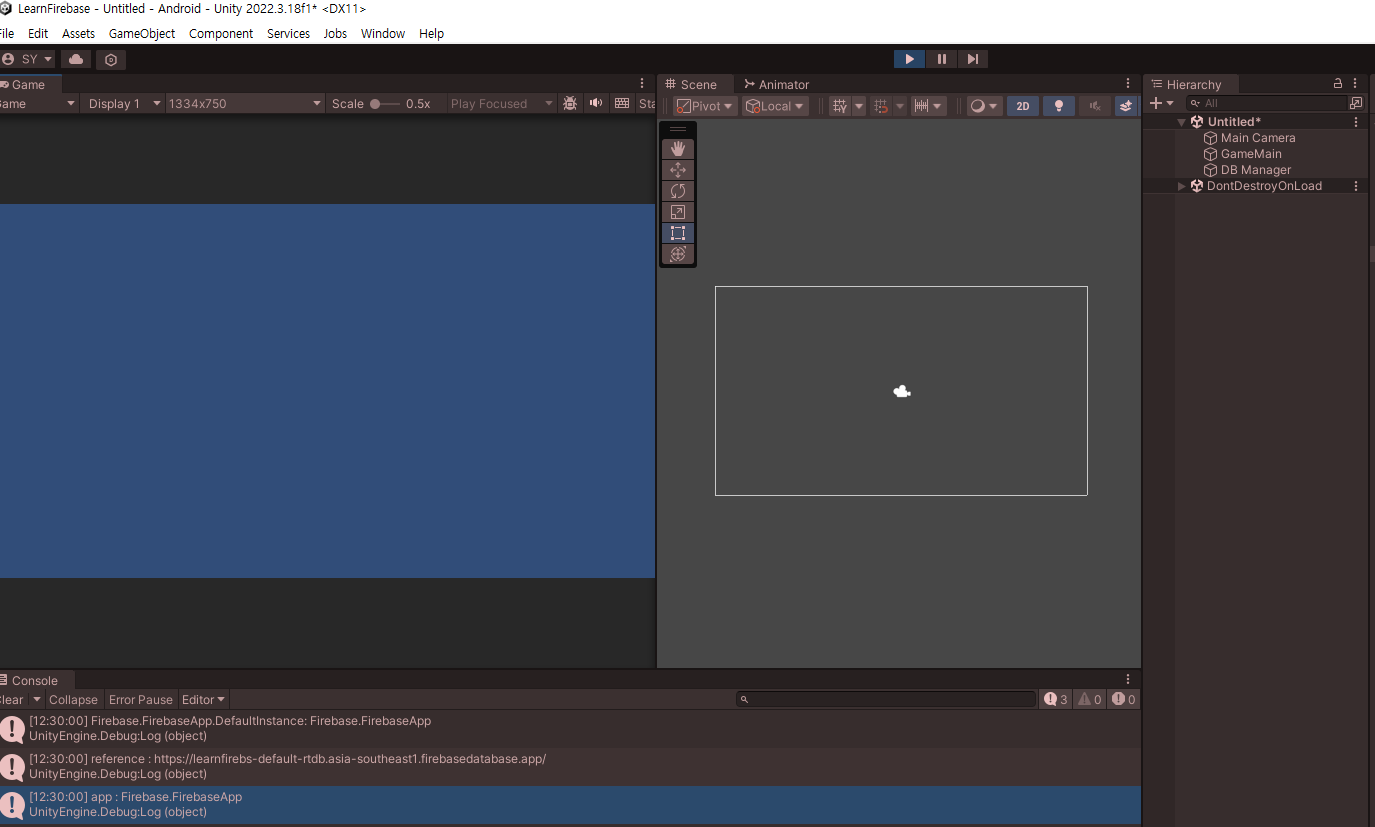
using Firebase;
using System.Collections;
using System.Collections.Generic;
using UnityEngine;

public class DBManager : MonoBehaviour
{
    [SerializeField] private string databaseUrl;

    private void Start()
    {
       FirebaseApp.DefaultInstance.Options.DatabaseUrl
            = new System.Uri(databaseUrl);
    }

}
게임정보
유저 아이디
점수
GameInfo
userId
score
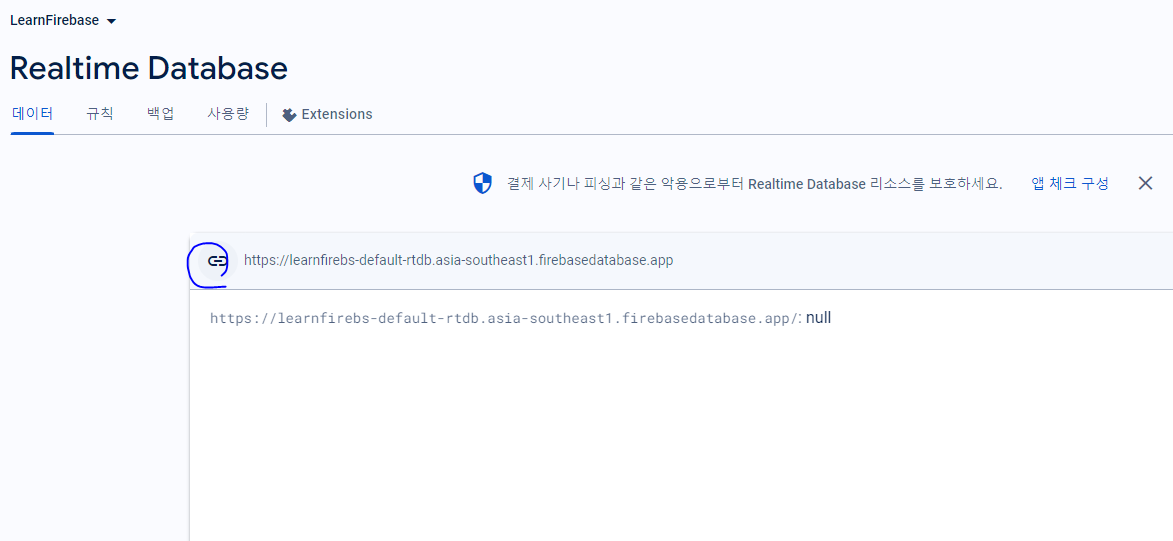
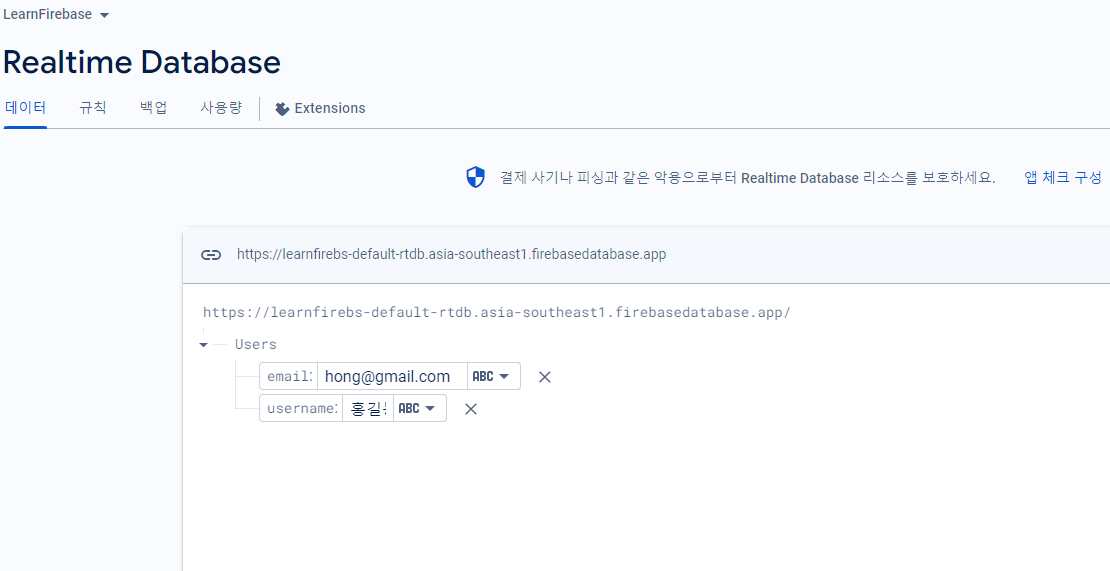
이 주소를 복사 한후
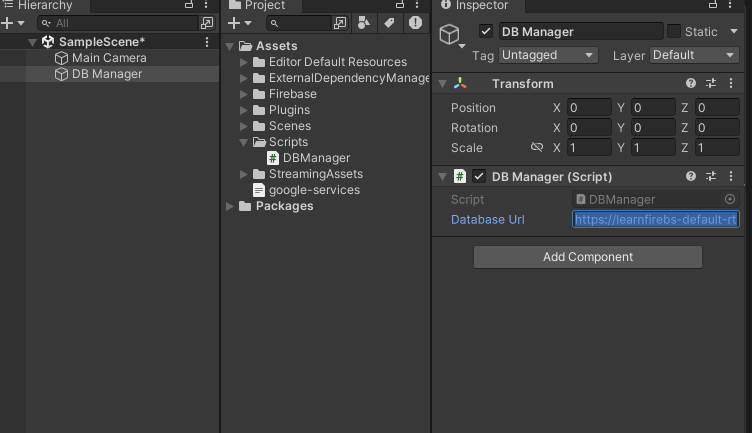
여기에 넣어주면 된다.
새 스크립트 생성 및 수정
using Newtonsoft.Json;
using System.Collections;
using System.Collections.Generic;
using UnityEngine;

public class GameMain : MonoBehaviour
{
    [SerializeField] private string userId;
    [SerializeField] private int score;

    void Start()
    {
        SaveGame();
    }

    public void SaveGame()
    {
        Debug.Log("SaveGame");

        GameInfo gameInfo = new GameInfo(userId, score);    //저장 객체 만들기
        string json = JsonConvert.SerializeObject(gameInfo);  //직렬화

        Debug.Log($"{json}");

        //저장
        DBManager.instance.SaveData(json);
    }
}
using System.Collections;
using System.Collections.Generic;
using UnityEngine;

public class GameInfo
{
    public string userId;
    public int score;

    //생성자
    public GameInfo(string userId, int score) {
        this.userId = userId;
        this.score = score;
    }
}
using Firebase;
using Firebase.Database;
using System.Collections;
using System.Collections.Generic;
using UnityEngine;

public class DBManager : MonoBehaviour
{
    [SerializeField] private string databaseUrl;

    public static DBManager instance;

    private void Awake()
    {
        instance = this;    //싱글톤
    }

    void Start()
    {
        FirebaseApp.DefaultInstance.Options.DatabaseUrl
            = new System.Uri(databaseUrl);
    }

    public async void SaveData(string json)
    {
        Debug.Log("SaveData");

        //DB의 최상단 디렉토리를 참조
        DatabaseReference dbRef = FirebaseDatabase.DefaultInstance.RootReference;

        Debug.Log($"dbRef: {dbRef}");

        //비동기 메서드때문에 완료 될때까지 대기
        await dbRef.SetRawJsonValueAsync(json);

        Debug.Log("데이터 저장 완료");
    }
}
------------------------- 오류가 계속 나서 다시 시작 ------------------------
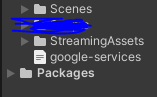
이 세개를 빼고 library, obj 같이 생성시 생기는 파일들을 모두 삭제하였다.
Firebase 폴더가 삭제되지 않으면 오픈 윈도우로 들어가서 삭제해보고
그래도 관리자 권한때문에 삭제되지 않으면 재부팅하면 된다.
using System.Collections;
using System.Collections.Generic;
using UnityEngine;

public class User
{
    public string username;
    public string email;

    public User()
    {
    }

    public User(string username, string email)
    {
        this.username = username;
        this.email = email;
    }
}
using System.Collections;
using System.Collections.Generic;
using UnityEngine;

public class GameInfo
{
    public string userId;
    public int score;

    //생성자
    public GameInfo(string userId, int score)
    {
        this.userId = userId;
        this.score = score;
    }
}
using Firebase.Database;
using Firebase.Extensions;
using System.Collections;
using System.Collections.Generic;
using UnityEngine;


public class GameMain : MonoBehaviour
{
    DatabaseReference mDatabaseRef;
    void Start()
    {
        Debug.Log($"Firebase.FirebaseApp.DefaultInstance: {Firebase.FirebaseApp.DefaultInstance}");
        // Get the root reference location of the database.

        mDatabaseRef = FirebaseDatabase.DefaultInstance.RootReference;

        Debug.Log($"reference : {mDatabaseRef}");

        writeNewUser("hong", "홍길동", "hong@gmail.com");


    }

    private void writeNewUser(string userId, string name, string email)
    {
        User user = new User(name, email);
        string json = JsonUtility.ToJson(user);

        mDatabaseRef.Child("Users").SetRawJsonValueAsync(json);
        CheckAndFixDependenciesAsync();
    }

    private void CheckAndFixDependenciesAsync()
    {
        Firebase.FirebaseApp.CheckAndFixDependenciesAsync().ContinueWithOnMainThread(task => {
            var dependencyStatus = task.Result;
            if (dependencyStatus == Firebase.DependencyStatus.Available)
            {
                // Create and hold a reference to your FirebaseApp,
                // where app is a Firebase.FirebaseApp property of your application class.
                var app = Firebase.FirebaseApp.DefaultInstance;
                Debug.Log($"app : {app}");


                // Set a flag here to indicate whether Firebase is ready to use by your app.
            }
            else
            {
                UnityEngine.Debug.LogError(System.String.Format(
                  "Could not resolve all Firebase dependencies: {0}", dependencyStatus));
                // Firebase Unity SDK is not safe to use here.
            }
        });
    }

}
using Firebase;
using Firebase.Database;
using System.Collections;
using System.Collections.Generic;
using UnityEngine;

public class DBManager : MonoBehaviour
{
    [SerializeField] private string databaseUrl;

    public static DBManager instance;

    private void Awake()
    {
        instance = this;    //싱글톤
    }


    public void Init()
    {
        FirebaseApp.DefaultInstance.Options.DatabaseUrl
            = new System.Uri(databaseUrl);

        FirebaseApp.CheckAndFixDependenciesAsync().ContinueWith(task => {

            FirebaseApp app = FirebaseApp.DefaultInstance;

            if (app != null)
            {
                Debug.Log("DefaultInstance를 찾을수 없습니다.");
            }
            else
            {
                Debug.Log("초기화가 정상적으로 되었습니다.");
            }
        });
    }

    public async void SaveData(string json)
    {
        Debug.Log("SaveData");

        //DB의 최상단 디렉토리를 참조
        DatabaseReference dbRef = FirebaseDatabase.DefaultInstance.RootReference;

        Debug.Log($"dbRef: {dbRef}");

        //비동기 메서드때문에 완료 될때까지 대기
        await dbRef.SetRawJsonValueAsync(json);

        Debug.Log("데이터 저장 완료");
    }
}
using System.Collections;
using System.Collections.Generic;
using UnityEditor;
using UnityEngine;
using UnityEngine.EventSystems;
using UnityEngine.InputSystem.LowLevel;

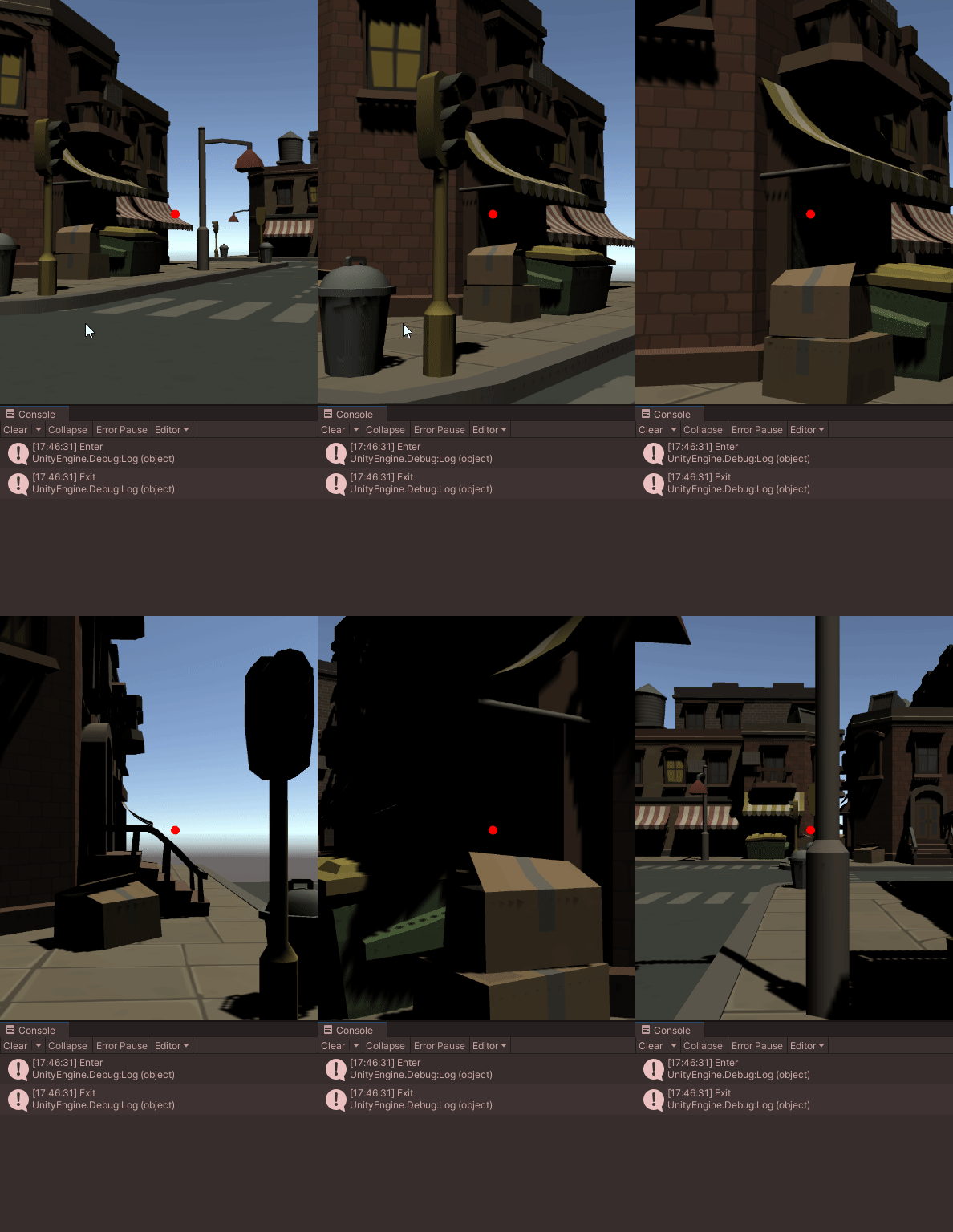
public class Car : MonoBehaviour, IPointerEnterHandler, IPointerExitHandler, IGvrPointerHoverHandler
{
    private Coroutine coroutine;
    public GameObject menuUI;
    public void OnGvrPointerHover(PointerEventData eventData)
    {
        //Debug.Log("Hover");
    }


    public void OnPointerEnter(PointerEventData eventData)
    {
        coroutine = StartCoroutine(CoClick());
        Debug.Log("Enter");
        menuUI.SetActive(true);

    }


    private IEnumerator CoClick()
    {
        float delta = 0f;
        while (true)
        {
            delta += Time.deltaTime;
            if(delta >= 3)
            {
                Debug.LogFormat("Clicked , {0}", delta);
                delta = 0f;
            }
            yield return null;
        }
    }
    public void OnPointerExit(PointerEventData eventData)
    {
        Debug.Log("Exit");
        menuUI.SetActive(false);
        StopCoroutine(coroutine);
    }
}
플레이어의 위치에 따라서 패널의 방향이 변경되는데
이는 캔버스안에 넣어주어야 한다.
using System.Collections;
using System.Collections.Generic;
using UnityEngine;

public class Billboard : MonoBehaviour
{


    // Update is called once per frame
    void Update()
    {
        this.transform.LookAt(Camera.main.transform.position);
    }
}
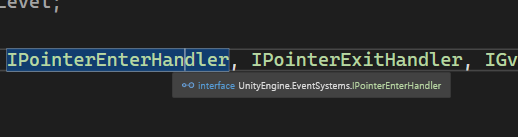
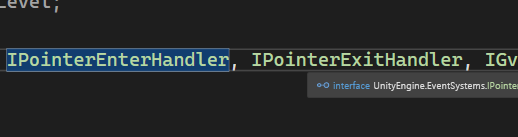
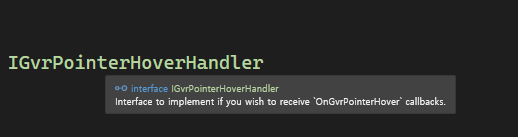
IPointerEnterHandler, IPointerExitHandler는 유니티엔진에 있는 메소드이지만,
IGvrPointerHoverHandler는 직접 만들어준 메소드이다.
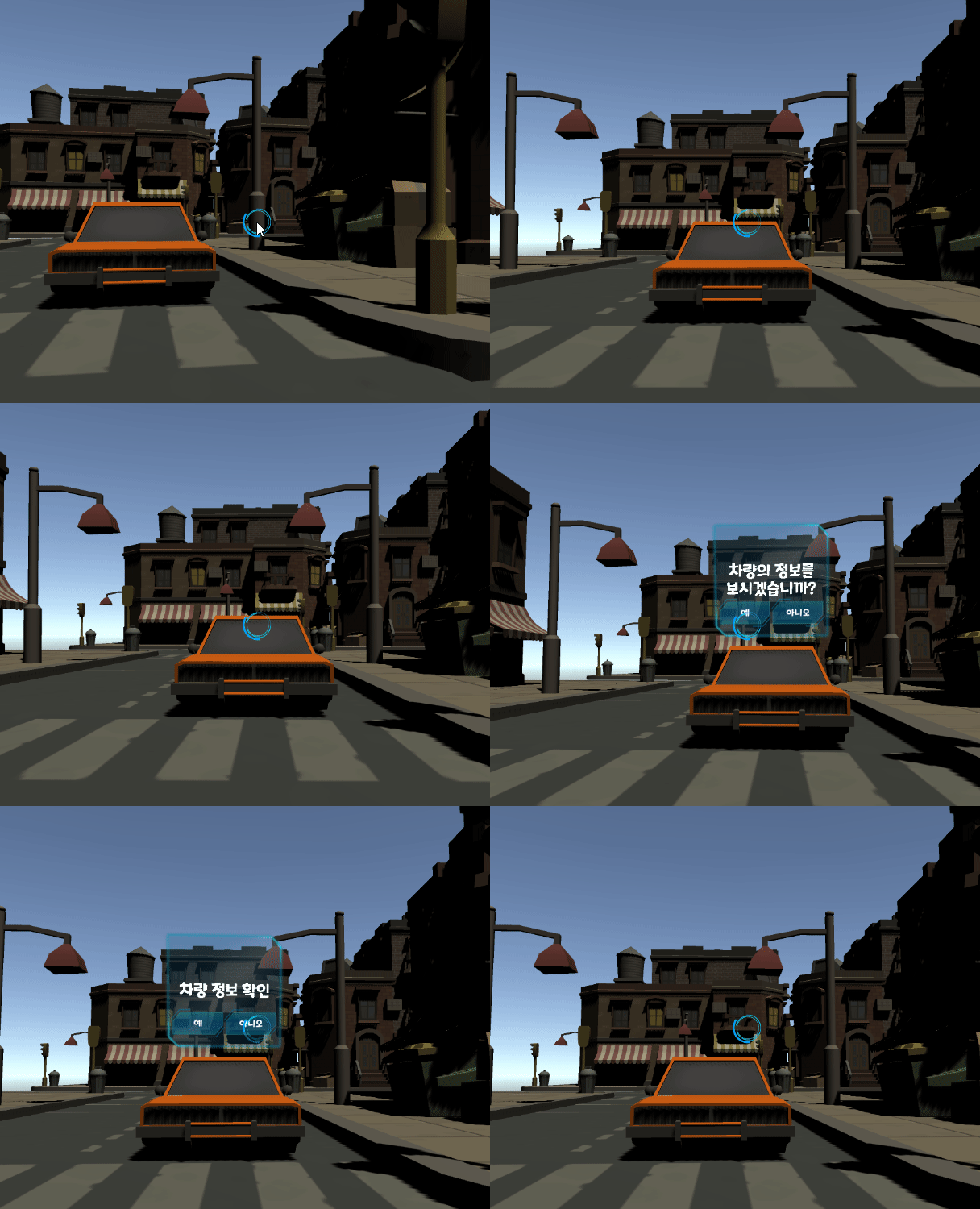
커스텀 래티클 만들기
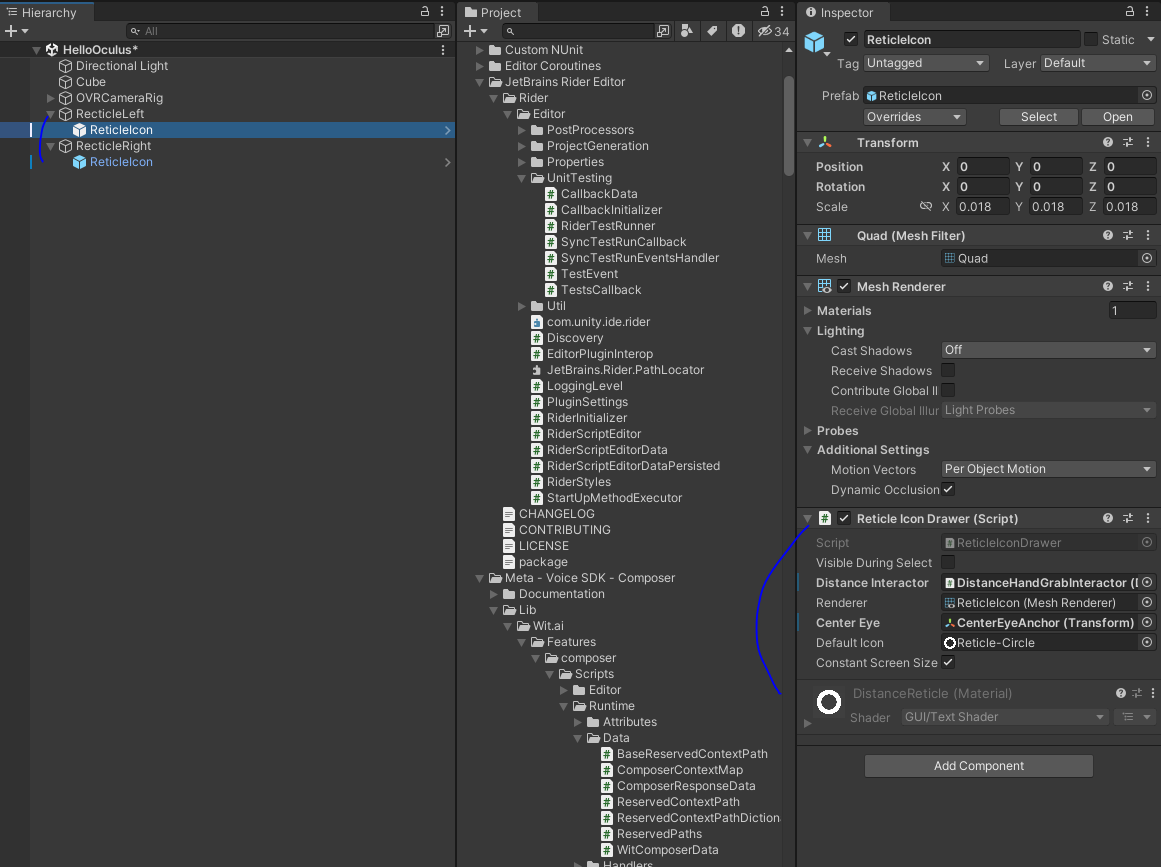
이번엔 기존에 사용했던 빨간색 래티클을 없애고 새로운 래티클을 만들어 주려 한다.
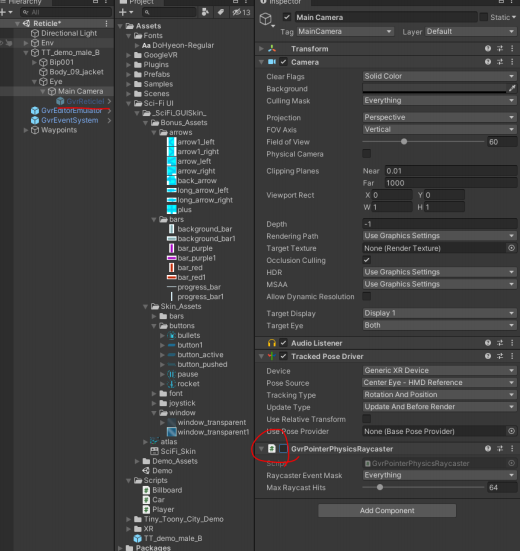
Main Camera의 GvrRecticlePointer와 GvrPointerPhysicsRaycast를 비활성화 한다.
Main Camera자식으로 Canvas를 생성하고 다음과 같이 속성을 변경 한다
그리고 적절한 이미지를 붙여준 후 Fill효과를 넣어줄 것이므로
복사해서 앞과 뒤를 만든다.
Back은 알파 값을 조금 줄여주고
Front는 filled, Radial 360, Top으로 변경하였다.
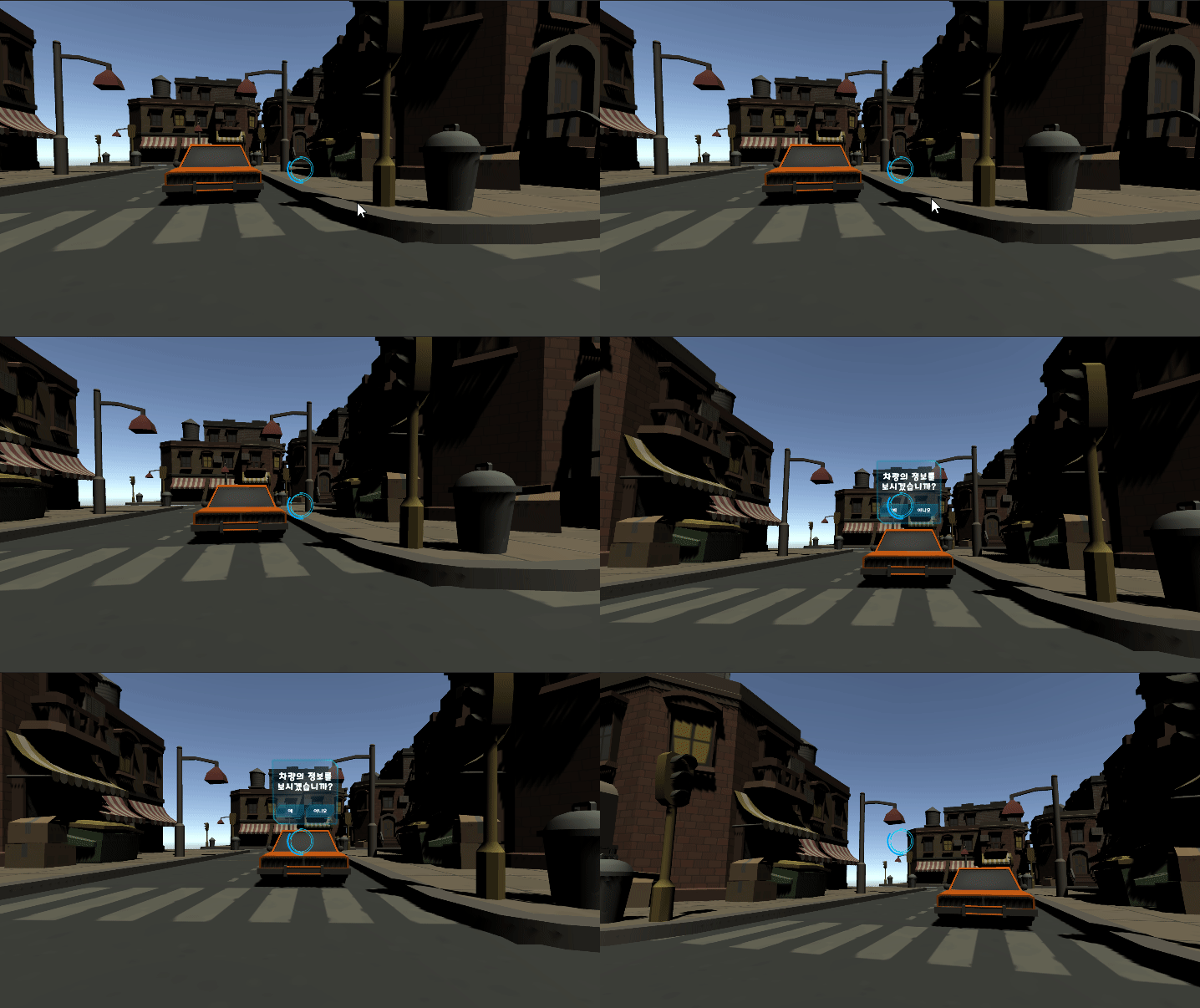
우선 래티클이 변경되었으니 인지를 하게 만드는 것이 우선인데
차의 레이어는 7 메뉴의 레이어는 6으로 만들어서
인지할수 있도록 하였다.
using System.Collections;
using System.Collections.Generic;
using UnityEditor;
using UnityEngine;
using UnityEngine.EventSystems;
using UnityEngine.InputSystem.LowLevel;

public class Car : MonoBehaviour, IPointerEnterHandler, IPointerExitHandler, IGvrPointerHoverHandler
{
    private static Car instance;
    private Coroutine coroutine;
    public GameObject menuUI;

    private void Start()
    {
        //menuUI.SetActive(false);
    }

    private void Awake()
    {
        if (instance == null)
        {
            instance = this;
        }
        else
        {
            Debug.LogWarning("Duplicate instance of Car found!");
            Destroy(gameObject); // 중복된 인스턴스 제거
        }
    }

    public static Car GetInstance()
    {
        return instance;
    }


    public void OnGvrPointerHover(PointerEventData eventData)
    {
        //Debug.Log("Hover");
    }


    public void OnPointerEnter(PointerEventData eventData)
    {
        coroutine = StartCoroutine(CoClick());
        Debug.Log("Enter");
        menuUI.SetActive(true);
        Debug.Log("이벤트 대상: " + eventData.pointerEnter.name);
    }


    private IEnumerator CoClick()
    {
        float delta = 0f;
        while (true)
        {
            delta += Time.deltaTime;
            if(delta >= 3)
            {
                Debug.LogFormat("Clicked , {0}", delta);
                delta = 0f;
            }
            yield return null;
        }
    }
    public void OnPointerExit(PointerEventData eventData)
    {
        Debug.Log("Exit");
        menuUI.SetActive(false);
        StopCoroutine(coroutine);
    }
}
using System.Collections;
using System.Collections.Generic;
using UnityEngine;
using UnityEngine.EventSystems;
using UnityEngine.UI;

public class EyeCast : MonoBehaviour
{
    private Transform trans;
    private Ray ray;
    private RaycastHit hit;
    public float dist = 10f;
    public Image gauge;
    bool isOpenedUIMenu = false;
    private Car carInstance; // 전역 변수로 선언

    void Start()
    {
        this.trans = this.GetComponent<Transform>();
        carInstance = Car.GetInstance(); // 전역 변수에 할당
        carInstance.menuUI.SetActive(false);
    }

    void Update()
    {
        ray = new Ray(this.trans.position, this.trans.forward);
        Debug.DrawRay(ray.origin, ray.direction * this.dist, Color.green);

        var mask = 1 << 6 | 1 << 7; // 레이어 마스크 설정
        if (Physics.Raycast(ray, out hit, dist, mask))
        {
            this.GazeButton();
        }
        else
        {
            ReleaseButton();
            // 여기에서 메뉴 닫는 동작을 추가할 수 있습니다.
            // 예: carInstance.menuUI.SetActive(false);
        }
    }

    private void GazeButton()
    {
        if (this.hit.collider.gameObject.layer == 7 && carInstance != null)
        {
            carInstance.menuUI.SetActive(true);
        }
    }

    private void ReleaseButton()
    {
        if (this.hit.collider == null || this.hit.collider.gameObject == null)
        {
            carInstance.menuUI.SetActive(false);
        }
    }
}
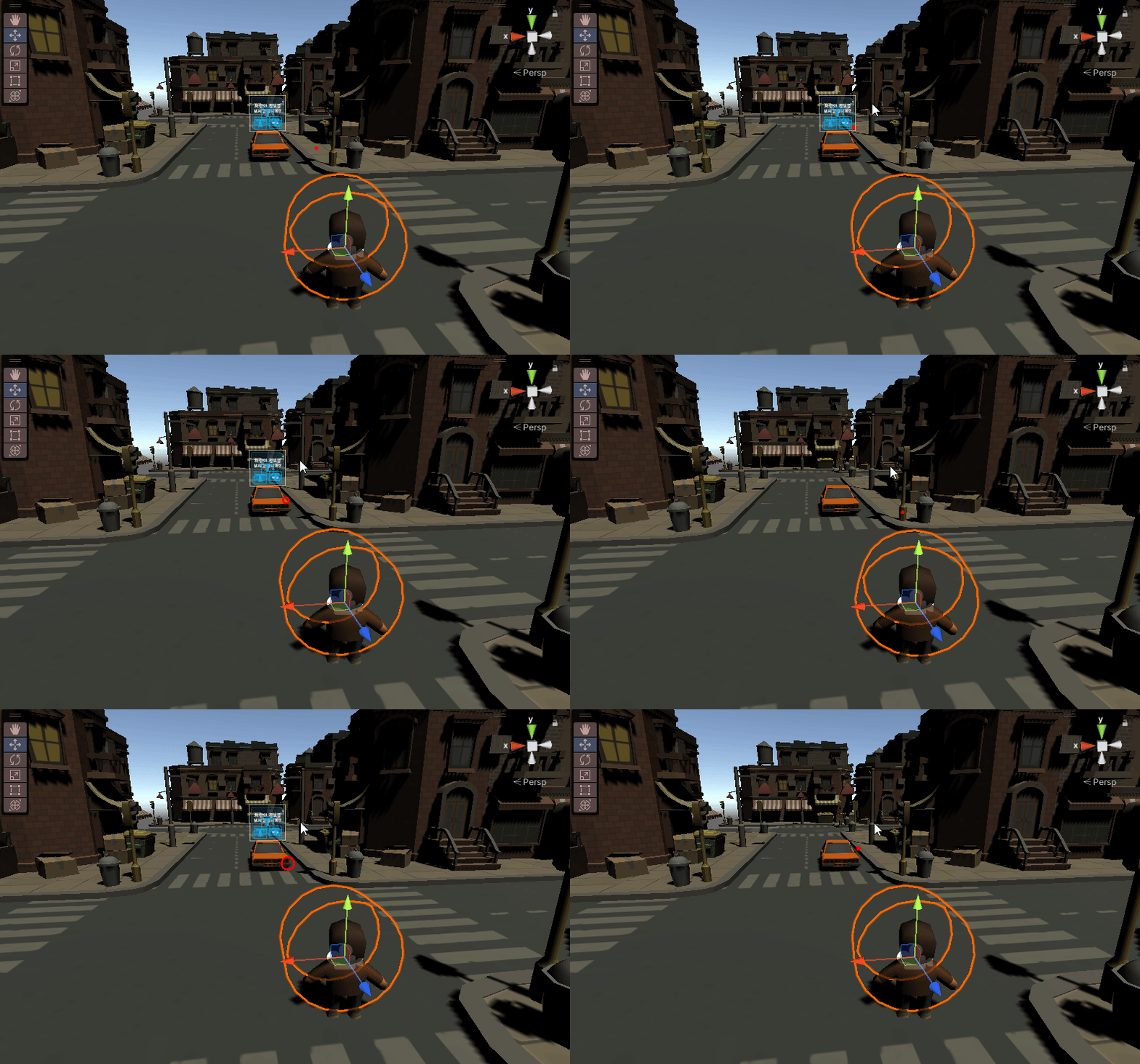
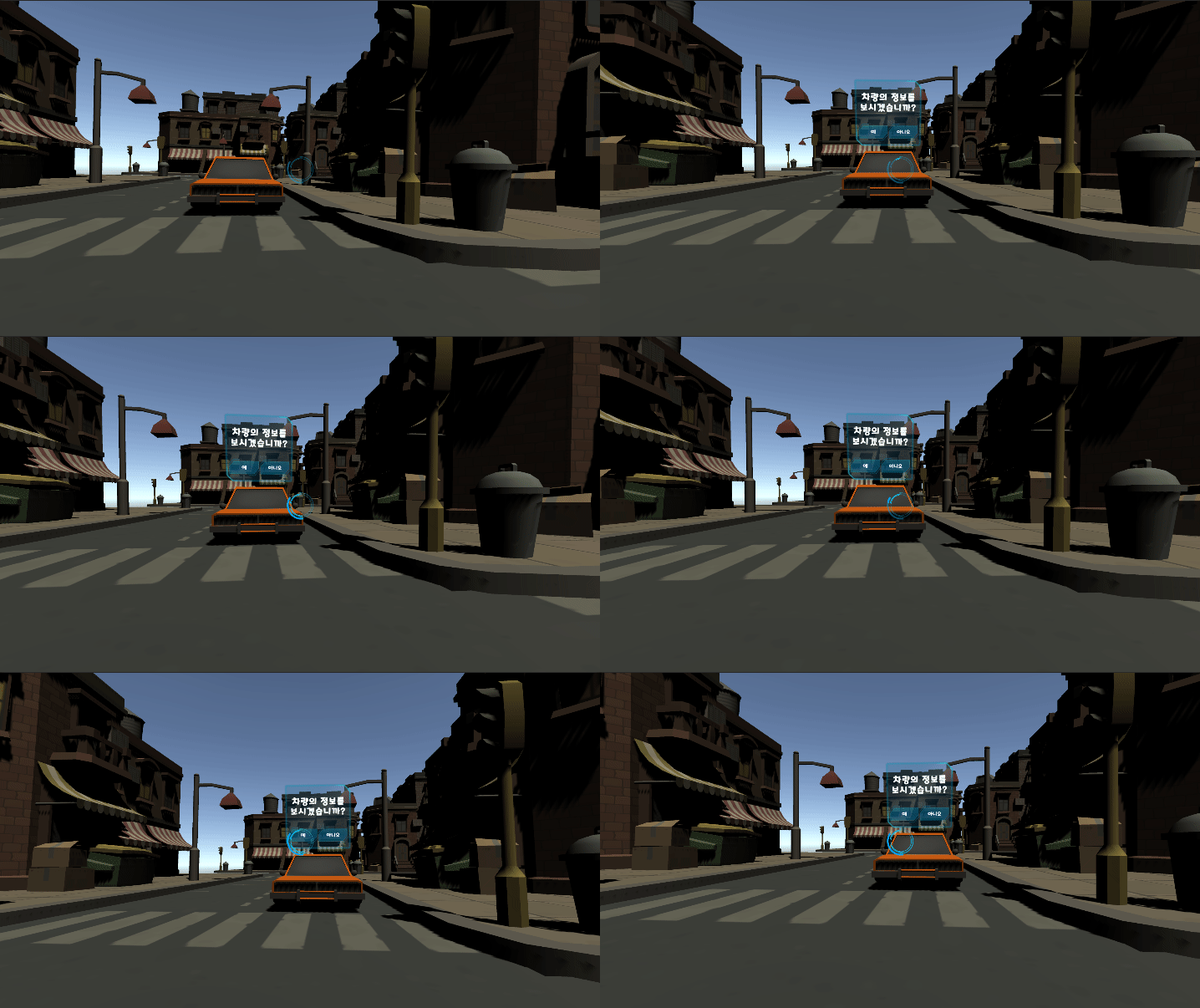
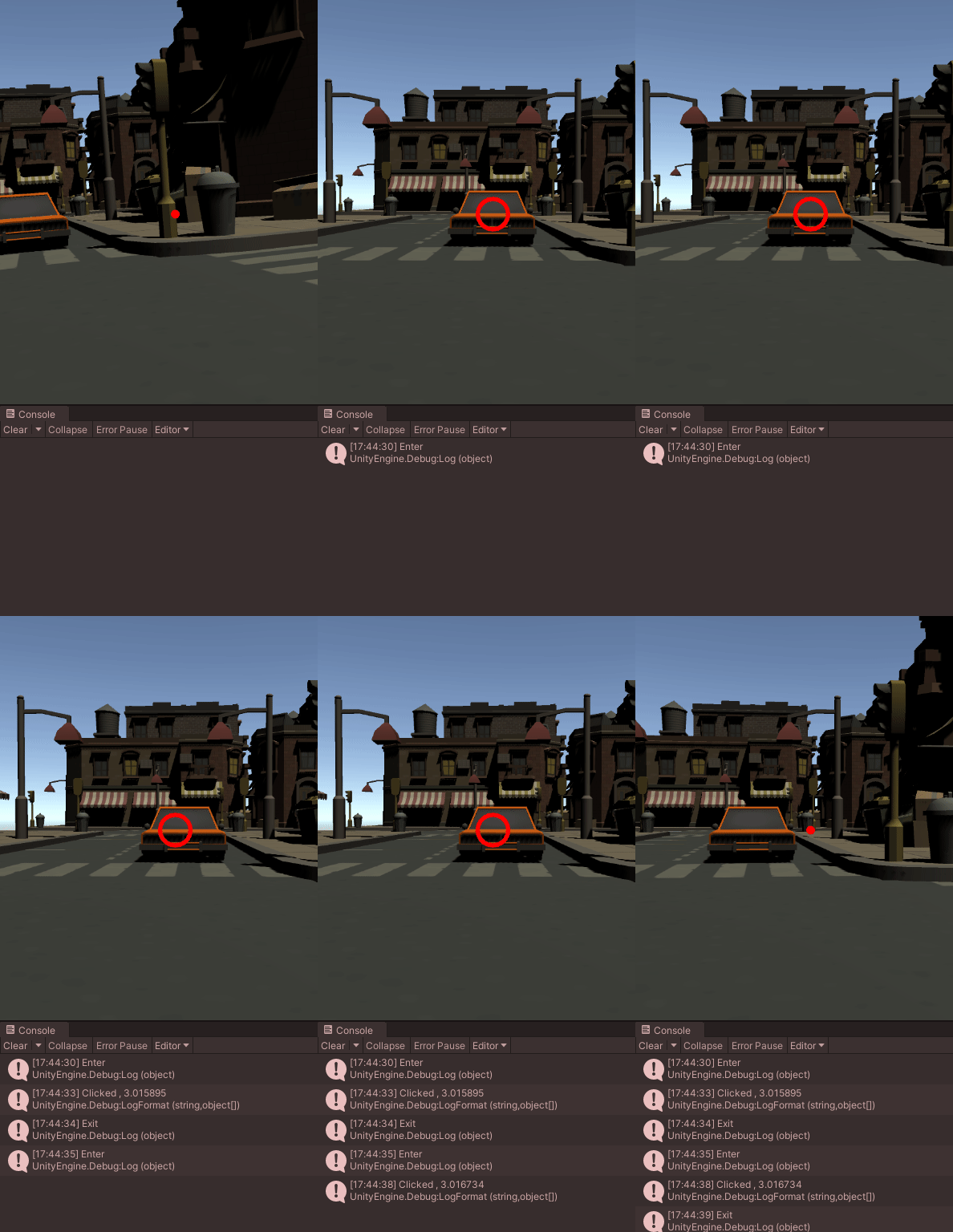
보기와 같이 코드에서 차뿐만이 아닌 버튼에도 레이어를 설정해두었기 때문에
버튼쪽에 래티클을 갖다 두어도 창이 사라지지 않는다.
레이어를 인식해서 게이지를 채우고
나갔을 때 초기화
using System.Collections;
using System.Collections.Generic;
using UnityEngine;
using UnityEngine.EventSystems;
using UnityEngine.UI;

public class EyeCast : MonoBehaviour
{
    private Transform trans;
    private Ray ray;
    private RaycastHit hit;
    public float dist = 10f;
    public Image gauge;
    bool isOpenedUIMenu = false;
    private Car carInstance; // 전역 변수로 선언
    private float delta;

    void Start()
    {
        this.trans = this.GetComponent<Transform>();
        carInstance = Car.GetInstance(); // 전역 변수에 할당
        carInstance.menuUI.SetActive(false);
    }

    void Update()
    {
        ray = new Ray(this.trans.position, this.trans.forward);
        Debug.DrawRay(ray.origin, ray.direction * this.dist, Color.green);

        var mask = 1 << 6 | 1 << 7; // 레이어 마스크 설정
        if (Physics.Raycast(ray, out hit, dist, mask))
        {
            //gauge.fillAmount = 0;
            StartCoroutine(GazeButton());
        }
        else
        {
            delta = 0;
            gauge.fillAmount = 0;

            StartCoroutine(ReleaseButton());


            // 여기에서 메뉴 닫는 동작을 추가할 수 있습니다.
            // 예: carInstance.menuUI.SetActive(false);
        }
    }
    IEnumerator GazeButton()
    {

        if (this.hit.collider.gameObject.layer == 7 && carInstance != null)
        {
            carInstance.menuUI.SetActive(true);

            this.delta += Time.deltaTime;
            gauge.fillAmount = delta / 3;
        }
        else
        {

        }
        yield return null;
    }

    IEnumerator ReleaseButton()
    {
        if (this.hit.collider == null || this.hit.collider.gameObject == null)
        {

            carInstance.menuUI.SetActive(false);


        }
        yield return null;
    }
}
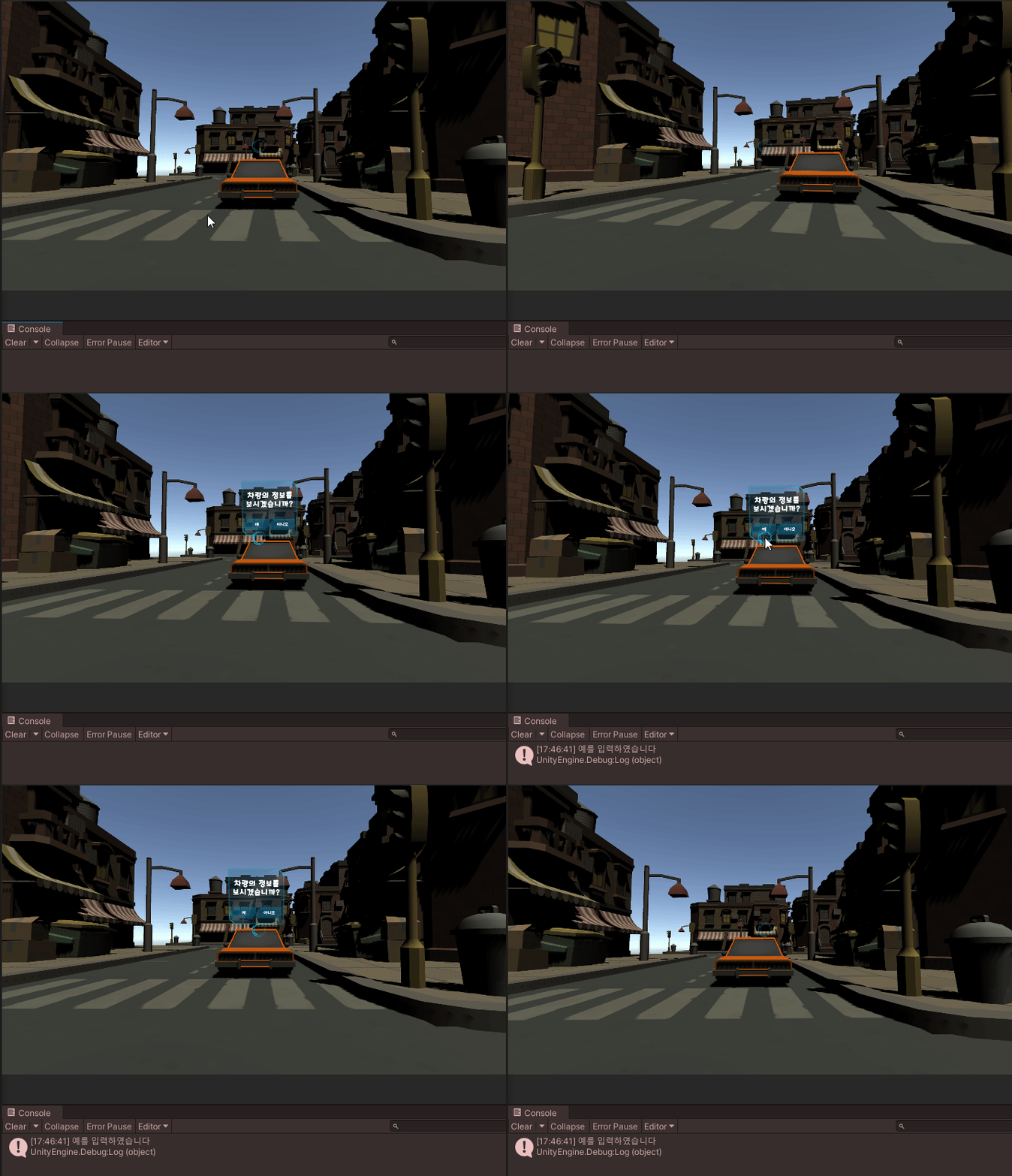
게이지를 채워서 예를 누르면 예가 찍히고
아니요를 누르면 창을 종료 시켰다.
using System.Collections;
using System.Collections.Generic;
using UnityEngine;
using UnityEngine.EventSystems;
using UnityEngine.UI;

public class EyeCast : MonoBehaviour
{
    private Transform trans;
    private Ray ray;
    private RaycastHit hit;
    public float dist = 10f;
    public Image gauge;
    private Car carInstance; // 전역 변수로 선언
    private float delta;
    public Button clickYes;
    public Button clickNo;
    private bool isYesClicked = false;
    private Coroutine coroutine;

    void Start()
    {
        this.trans = this.GetComponent<Transform>();
        carInstance = Car.GetInstance(); // 전역 변수에 할당
        carInstance.menuUI.SetActive(false);
    }

    void Update()
    {


        ray = new Ray(this.trans.position, this.trans.forward);
        Debug.DrawRay(ray.origin, ray.direction * this.dist, Color.green);

        var mask = 1 << 7; // 레이어 마스크 설정
        if (Physics.Raycast(ray, out hit, dist, mask))
        {
            //gauge.fillAmount = 0;

              if(coroutine != null)
            {
                StopCoroutine(coroutine);

            }

            StartCoroutine(GazeButton());

        }


        else if (Physics.Raycast(ray, out hit, dist, 1 << 6))
        {
            //gauge.fillAmount = 0;
            //StartCoroutine(GazeButton());


                StartCoroutine(GazeButton());
                StartCoroutine(ClickButton());


        }

        else
        {
            if (isYesClicked == true)
            {
                isYesClicked = false;
            }
            delta = 0;
            gauge.fillAmount = 0;

            StartCoroutine(ReleaseButton());


            // 여기에서 메뉴 닫는 동작을 추가할 수 있습니다.
            // 예: carInstance.menuUI.SetActive(false);
        }
    }
    IEnumerator GazeButton()
    {

        if (this.hit.collider.gameObject.layer == 7 || this.hit.collider.gameObject.layer == 6 && carInstance != null)
        {
            carInstance.menuUI.SetActive(true);

            this.delta += Time.deltaTime;
            gauge.fillAmount = delta / 2;
        }
        else
        {
            delta = 0;
            gauge.fillAmount = 0;
        }
        yield return null;
    }

    IEnumerator ClickButton()
    {
        if (this.hit.collider.gameObject.layer == 6)
        {
            this.delta += Time.deltaTime;
            if (gauge.fillAmount >= 1)
            {
                if (hit.collider.gameObject.name == "ButtonYes" && isYesClicked == false)
                {
                    isYesClicked = true;
                    Debug.Log("예를 입력하였습니다");
                }
                if (hit.collider.gameObject.name == "ButtonNo")
                {
                    carInstance.menuUI.SetActive(false);
                }
            }
        }
        yield return null;
    }


    IEnumerator ReleaseButton()
    {
        if (this.hit.collider == null || this.hit.collider.gameObject == null)
        {
            carInstance.menuUI.SetActive(false);
        }
        yield return null;
    }
}
마지막으로 레이어 이동시 게이지를 초기화 시키도록 구현하기 위해 수정을 하였다.
using System.Collections;
using UnityEngine;
using UnityEngine.UI;

public class EyeCast : MonoBehaviour
{
    private Transform trans;
    private RaycastHit hit;
    public float dist = 10f;
    public Image gauge;
    public Car car;
    public Button clickYes;
    public Button clickNo;

    private int lastLayer = 0;
    private string lastButton = "";

    float carCount = 0;
    float yesButtonCount = 0;
    float noButtonCount = 0;


    void Start()
    {
        this.trans = this.GetComponent<Transform>();
        car.menuUI.SetActive(false); // 처음엔 menu가 닫힌채로 시작

        StartCoroutine(ReleaseButton());
        StartCoroutine(GazeButton());
        StartCoroutine(ClickButton());
    }


    IEnumerator GazeButton()
    {
        while (true)
        {
            Ray ray = new Ray(this.trans.position, this.trans.forward);
            if (Physics.Raycast(ray, out hit, dist, 1 << 7)) // Layer 7 = Car
            {
                if (lastLayer != 7 && carCount < 2)
                {
                    carCount = 0;
                    gauge.fillAmount = 0;
                }
                else if (lastLayer != 7 && carCount >= 2)
                {
                    carCount = 2;
                    gauge.fillAmount = 1;
                }
                else if (lastLayer !=7 && carCount >= 2 && !car.menuUI.gameObject.activeSelf) // No 버튼으로 menu가 닫혔을때, 다시 초기화
                {
                    carCount = 0;
                    gauge.fillAmount = 0;
                }
                lastLayer = 7;
                lastButton = "";

                //car.menuUI.SetActive(true);  -> Car를 응시 했을 때, 바로 메뉴 오픈

                if (carCount < 2)
                {
                    carCount += Time.deltaTime;
                    gauge.fillAmount = carCount / 2;

                    if (gauge.fillAmount >= 1)
                    {
                        car.menuUI.SetActive(true); // -> Car를 응시 했을 때, 2초 후 메뉴 오픈
                    }
                }
            }
            yield return null;
        }
    }


    IEnumerator ClickButton()  // ButtonYes와 ButtonNo 콜라이더 사이에 공백이 있으면 ResetCountAndGauge 메서드(메뉴 닫힘 및 초기화)가 실행 될 수 있으니 유의
    {
        while (true)
        {
            Ray ray = new Ray(this.trans.position, this.trans.forward);
            if (Physics.Raycast(ray, out hit, dist, 1 << 6)) //Layer 6 = Button
            {
                if (hit.collider.gameObject.name == "ButtonYes")
                {
                    lastLayer = 6;

                    if (lastButton != "ButtonYes" && yesButtonCount < 2)
                    {
                        lastButton = "ButtonYes";
                        yesButtonCount = 0;
                        gauge.fillAmount = 0;
                    }
                    else if (lastButton != "ButtonYes" && yesButtonCount >= 2)
                    {
                        lastButton = "ButtonYes";
                        yesButtonCount = 2;
                        gauge.fillAmount = 1;
                    }
                    if (yesButtonCount < 2)
                    {
                        yesButtonCount += Time.deltaTime;
                        gauge.fillAmount = yesButtonCount / 2;

                        if (gauge.fillAmount >= 1)
                        {
                            Debug.Log("예를 입력하였습니다");
                            car.uiText.text = "차량 정보 확인"; // UI Text 변경
                        }
                    }
                }
                else if (hit.collider.gameObject.name == "ButtonNo")
                {
                    lastLayer = 6;

                    if (lastButton != "ButtonNo")
                    {
                        lastButton = "ButtonNo";
                        noButtonCount = 0;
                        gauge.fillAmount = 0;
                    }
                    if (noButtonCount < 2)
                    {
                        noButtonCount += Time.deltaTime;
                        gauge.fillAmount = noButtonCount / 2;

                        if (gauge.fillAmount >= 1)
                        {
                            car.menuUI.SetActive(false);

                            // Count 및 Text 초기화
                            car.uiText.text = "차량의 정보를 보시겠습니까?";
                            carCount = 0;
                            yesButtonCount = 0;
                            noButtonCount = 0;
                            Debug.Log("아니오를 입력하였습니다. 메뉴를 종료합니다.");
                        }
                    }
                }
            }
            yield return null;
        }
    }


    IEnumerator ReleaseButton()
    {
        while (true)
        {
            Ray ray = new Ray(this.trans.position, this.trans.forward);
            if (!Physics.Raycast(ray, out hit, dist))
            {
                //car.menuUI.SetActive(false); -> Car, 버튼 어느것도 응시하지 않으면 menu 닫음
                gauge.fillAmount = 1;
                lastLayer = 0;
                lastButton = "";
            }
            yield return null;
        }
    }


}
using System.Collections;
using System.Collections.Generic;
using UnityEditor;
using UnityEngine;
using UnityEngine.EventSystems;
using UnityEngine.InputSystem.LowLevel;
using UnityEngine.UI;
using TMPro;

public class Car : MonoBehaviour, IPointerEnterHandler, IPointerExitHandler, IGvrPointerHoverHandler
{

    private Coroutine coroutine;
    public GameObject menuUI;
    public Text uiText; // menuUI Text

    private void Start()
    {
        //menuUI.SetActive(false);
    }


    public void OnGvrPointerHover(PointerEventData eventData)
    {
        //Debug.Log("Hover");
    }


    public void OnPointerEnter(PointerEventData eventData)
    {
        //coroutine = StartCoroutine(CoClick());
        //Debug.Log("Enter");
        ////menuUI.SetActive(true);
        //Debug.Log("이벤트 대상: " + eventData.pointerEnter.name);
    }


    private IEnumerator CoClick()
    {
        float delta = 0f;
        while (true)
        {
            delta += Time.deltaTime;
            if(delta >= 3)
            {
                Debug.LogFormat("Clicked , {0}", delta);
                delta = 0f;
            }
            yield return null;
        }
    }

    public void OnPointerExit(PointerEventData eventData)
    {
        //Debug.Log("Exit");
        //menuUI.SetActive(false);
        //StopCoroutine(coroutine);
    }
}
//-----------------------------------------------------------------------
// <copyright file="CardboardStartup.cs" company="Google LLC">
// Copyright 2020 Google LLC
//
// Licensed under the Apache License, Version 2.0 (the "License");
// you may not use this file except in compliance with the License.
// You may obtain a copy of the License at
//
//     http://www.apache.org/licenses/LICENSE-2.0
//
// Unless required by applicable law or agreed to in writing, software
// distributed under the License is distributed on an "AS IS" BASIS,
// WITHOUT WARRANTIES OR CONDITIONS OF ANY KIND, either express or implied.
// See the License for the specific language governing permissions and
// limitations under the License.
// </copyright>
//-----------------------------------------------------------------------

using Google.XR.Cardboard;
using UnityEngine;

/// <summary>
/// Initializes Cardboard XR Plugin.
/// </summary>
public class CardboardStartup : MonoBehaviour
{
    /// <summary>
    /// Start is called before the first frame update.
    /// </summary>
    public void Start()
    {
        // Configures the app to not shut down the screen and sets the brightness to maximum.
        // Brightness control is expected to work only in iOS, see:
        // https://docs.unity3d.com/ScriptReference/Screen-brightness.html.
        Screen.sleepTimeout = SleepTimeout.NeverSleep;
        Screen.brightness = 1.0f;

        // Checks if the device parameters are stored and scans them if not.
        if (!Api.HasDeviceParams())
        {
            Api.ScanDeviceParams();
        }
    }

    /// <summary>
    /// Update is called once per frame.
    /// </summary>
    public void Update()
    {
        if (Api.IsGearButtonPressed)
        {
            Api.ScanDeviceParams();
        }

        if (Api.IsCloseButtonPressed)
        {
            Application.Quit();
        }

        if (Api.IsTriggerHeldPressed)
        {
            Api.Recenter();
        }

        if (Api.HasNewDeviceParams())
        {
            Api.ReloadDeviceParams();
        }

#if !UNITY_EDITOR
        Api.UpdateScreenParams();
#endif
    }
}